
Remote Control Android from PC Using scrcpy
If you need to remotely access an Android phone this article walks through using scrcpy to remotely manage Android devices natively.

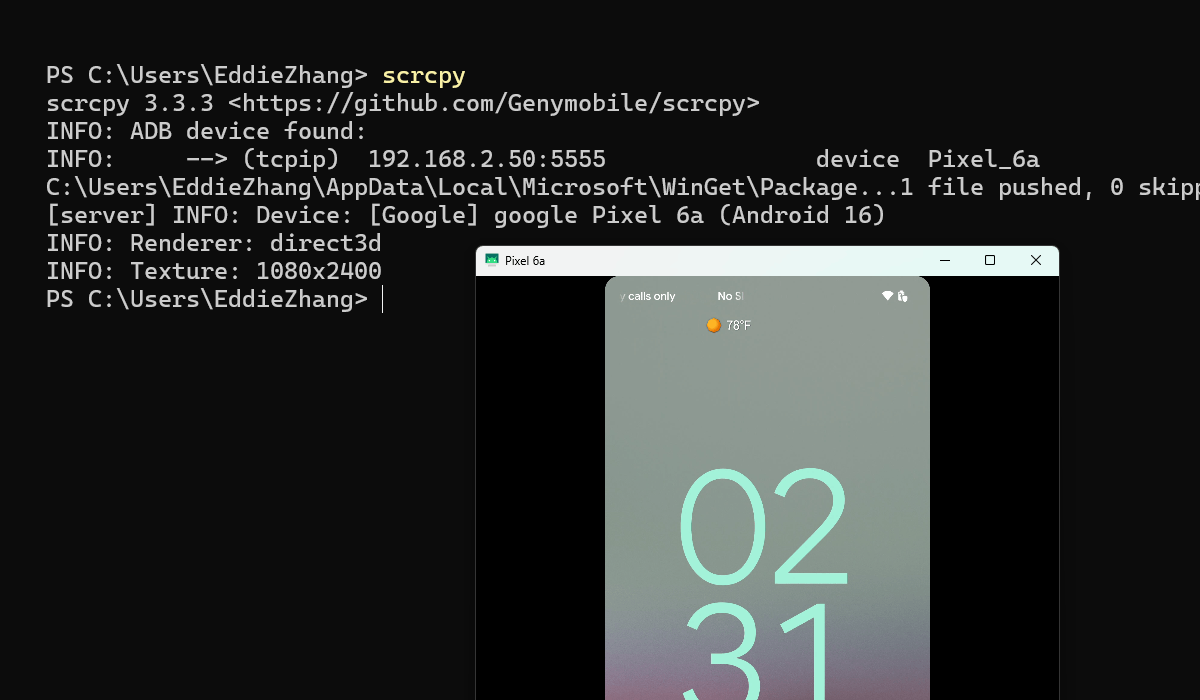
Project Black is a remote first company which makes sharing Android test devices more difficult when we've got mobile application penetration tests scheduled and limited test devices on hand.
Luckily scrcpy (screencopy), allows us to control Android devices over the network without having to install any third party software or services.
Installing Tools
In PowerShell run the following command to install scrcpy (this will also install Android dev tools like ADB).
winget install --exact Genymobile.scrcpy
Enabling ADB Debug
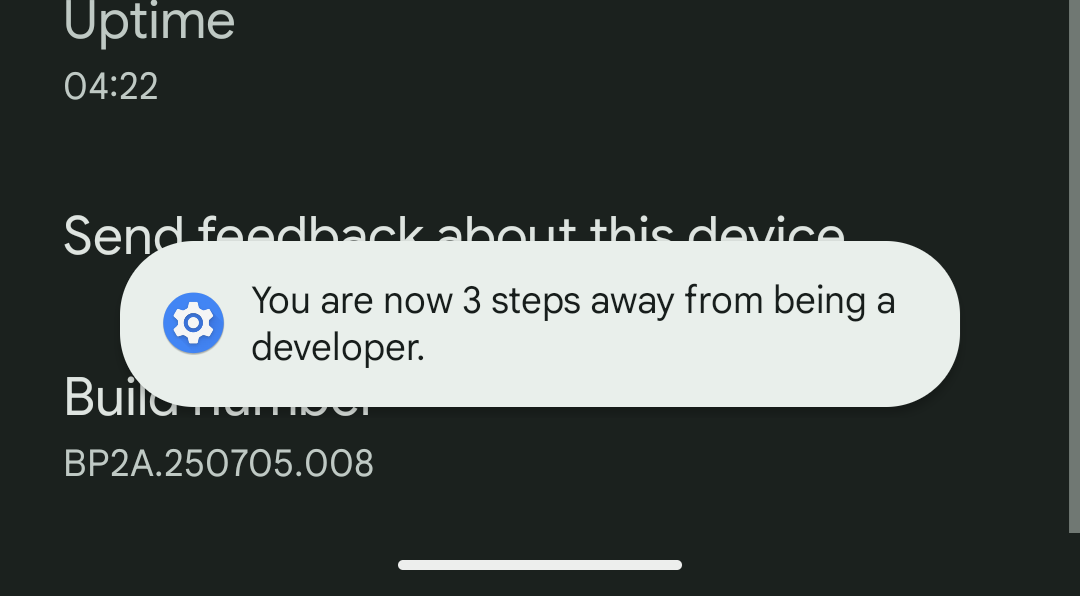
Browse to Settings -> About phone and enable developer options by tapping the build number a few times.
Next browse to Settings -> System -> Developer options and check the box for 'USB debugging'.
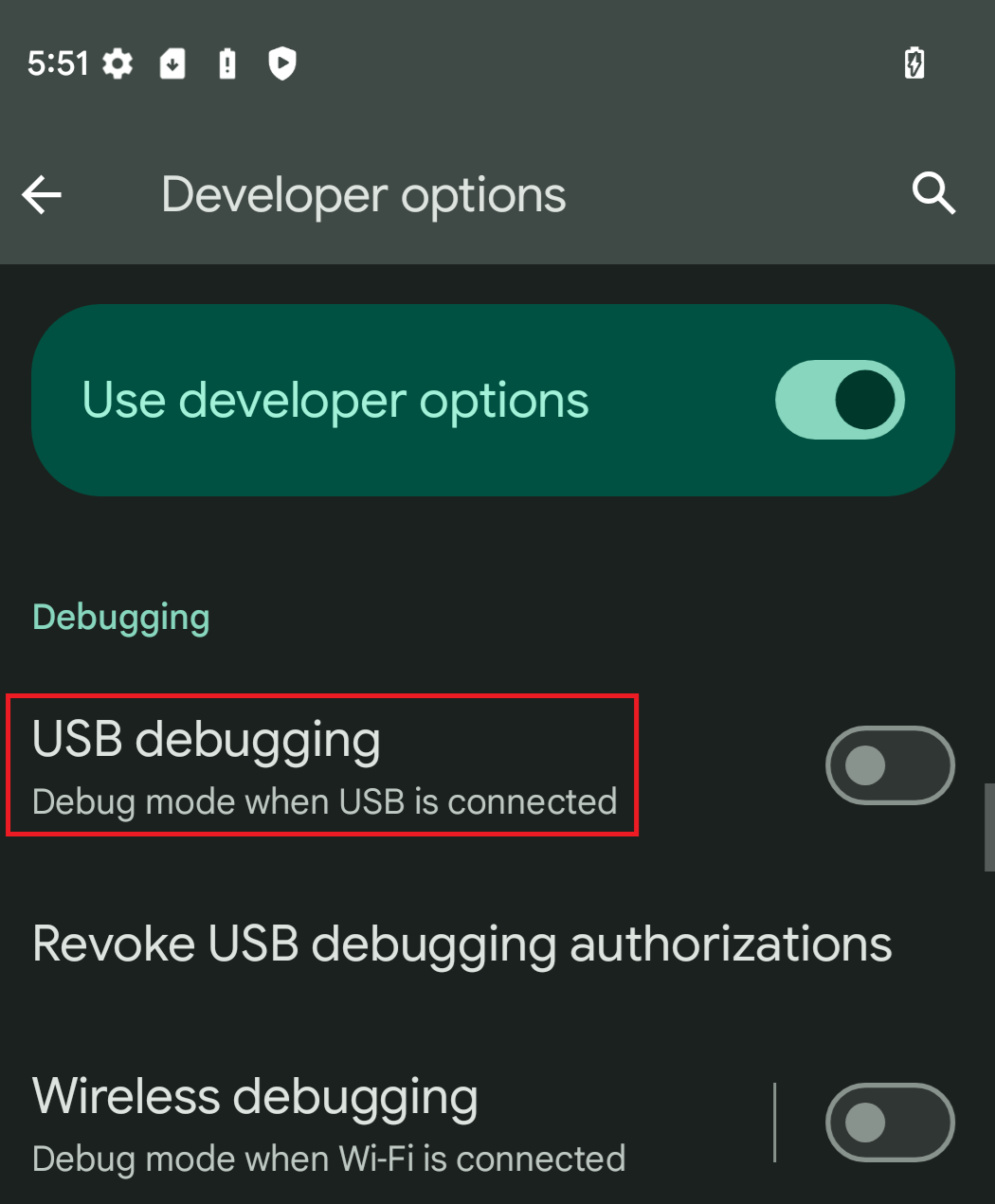
You should now be able to run adb devices and see your phone there.
C:\Users\EddieZhang>adb devices
List of devices attached
29151JEGR00878  device
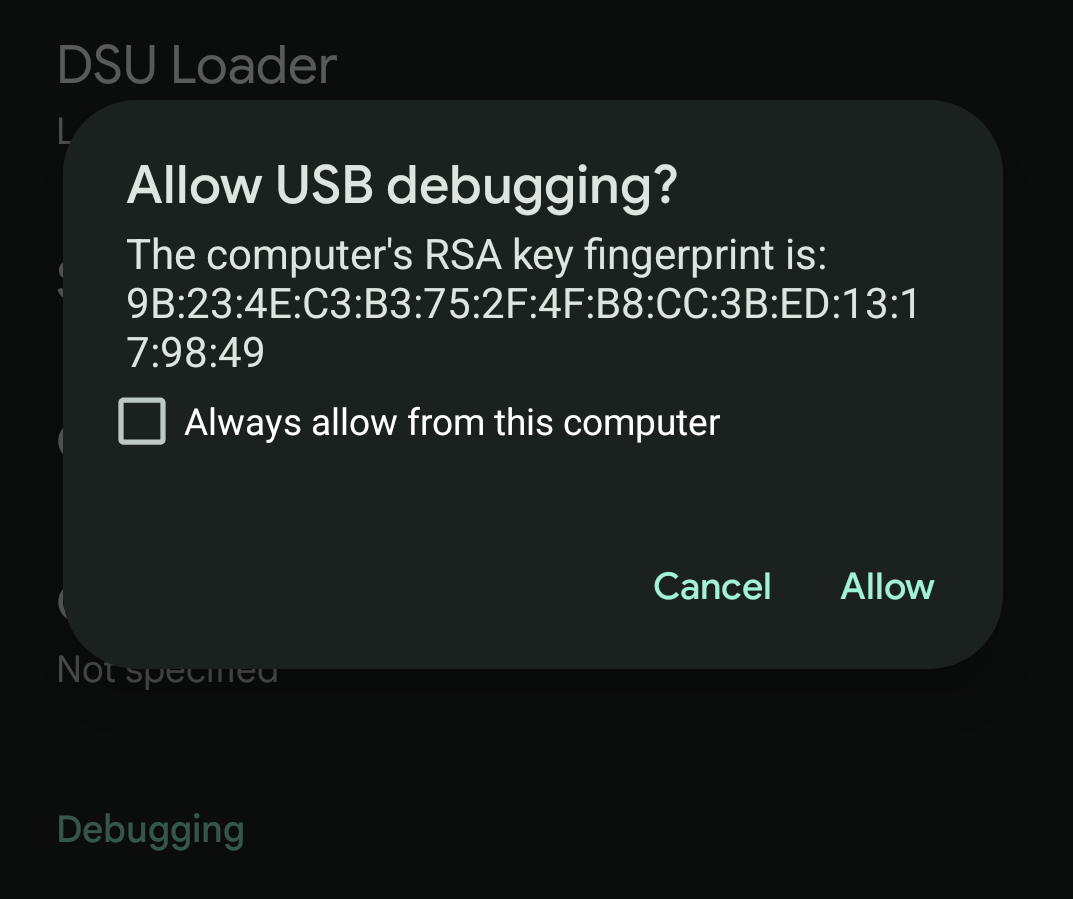
The first time you do this you'll need to allow USB debugging from your computer.
With the device connected using ADB you can run scrcpy to remotely control the device over USB.
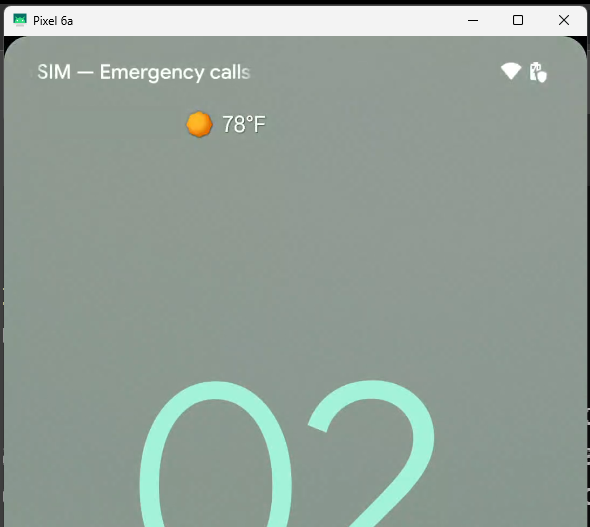
Even though the screen is blank, you can still type the PIN using your keyboard (1234 ENTER). Alternatively if you can guess where the buttons are on screen you can click on them.
As a last resort you can also unlock the device physically and make sure it doesn't lock again.
scrcpy Over Wifi
To connect over the network we can run the following command adb tcpip 5555 to make our device listen for ADB over TCP/IP.
PS C:\Users\EddieZhang> adb tcpip 5555
restarting in TCP mode port: 5555
Disconnect the USB cable and connect to the IP address of the phone.
PS C:\Users\EddieZhang> adb connect 192.168.2.100
connected to 192.168.2.100
And then run scrcpy as you did previously.
adb disconnect and then reconnect.So long as you have network access to the device (e.g. via VPN or a port forward) you'll be able to remotely control the Android device.
Sharing Device Keys
If a colleague wants to connect to the same device, someone who already has access will need to allow the RSA key and accept the prompt we saw in earlier screenshots.
To get around this, the keys adbkey and adbkey.pub can to be copied into the same directory on your colleague's computer.
ls
    Directory: C:\Users\EddieZhang\.android


Mode                 LastWriteTime         Length Name
----                 -------------         ------ ----
-a----         2/11/2025   7:19 PM           1732 adbkey
-a----         2/11/2025   7:19 PM            721 adbkey.pub
After doing this adb kill-server and adb start-server may be required to reload the new keys.
Enable Remote ADB on Boot (Root Required)
Restarting the device will disable ADB over TCP IP. To make this persistent, if you have Magisk installed we can add a start-up script to always enable ADB over TCP IP.
After running adb shell and su:
cat > /data/adb/service.d/adb_tcp.sh <<EOF
stop adbd
setprop service.adb.tcp.port 5555
start adbd
EOF

chmod 700 /data/adb/service.d/adb_tcp.sh