Preventing Downloads from Unmanaged Devices in O365
Defender for Cloud has publicly documented bypasses despite the countless articles suggesting it can be used to block downloads!

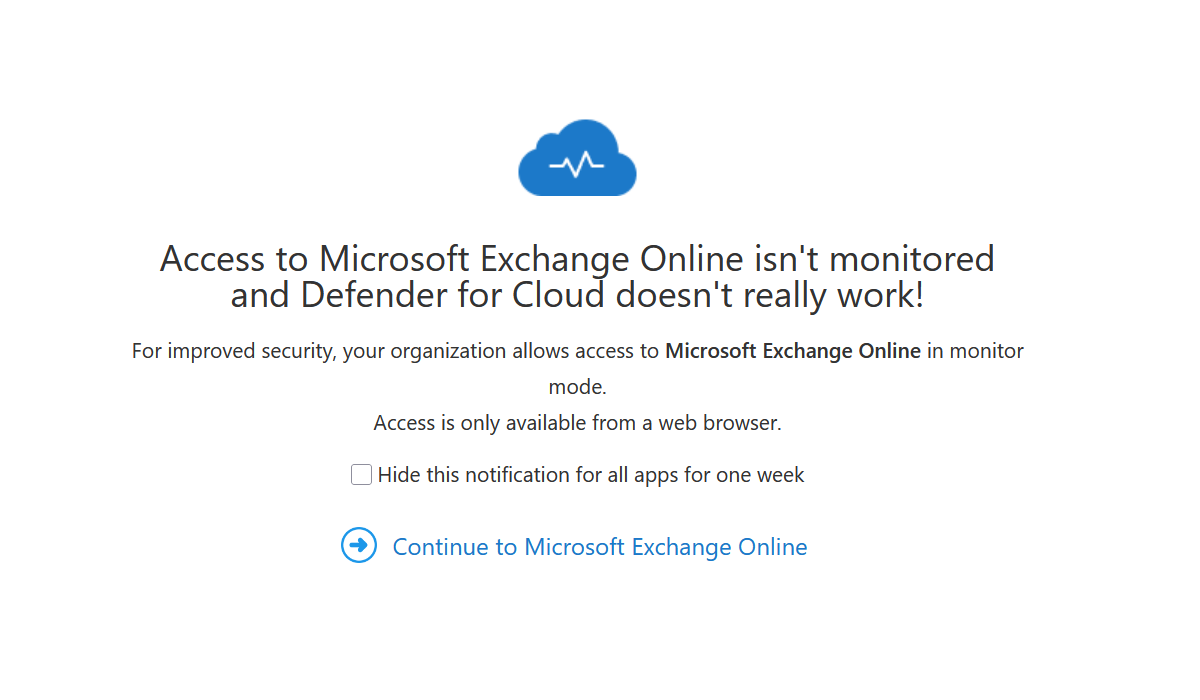
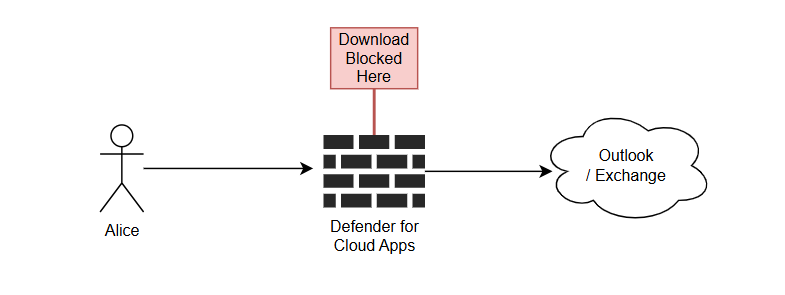
Defender for Cloud Apps is frequently recommended by IT practitioners to prevent users from downloading files on unmanaged devices as an intermediate step before requiring a compliant device for all data access.
At a high level, it works as a reverse proxy that sits in between the user and the actual service.
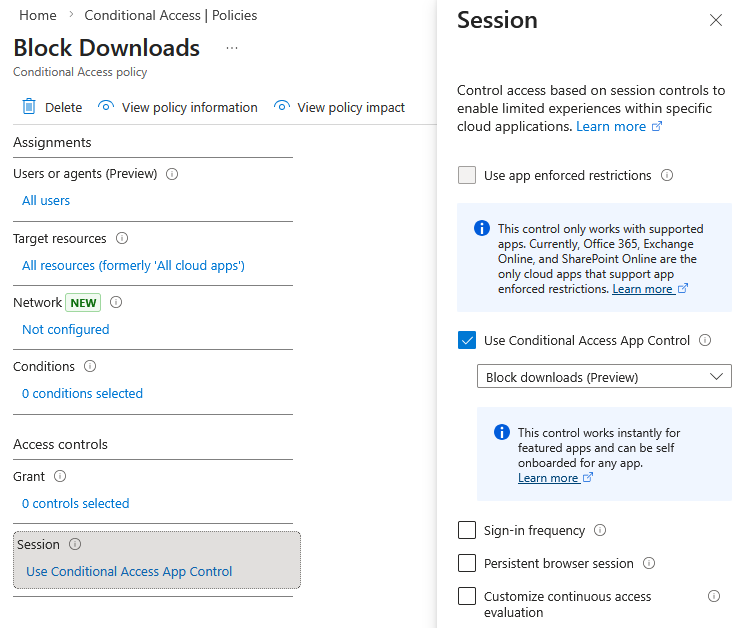
Configuring the following Conditional Access Policy will "force" this behaviour.
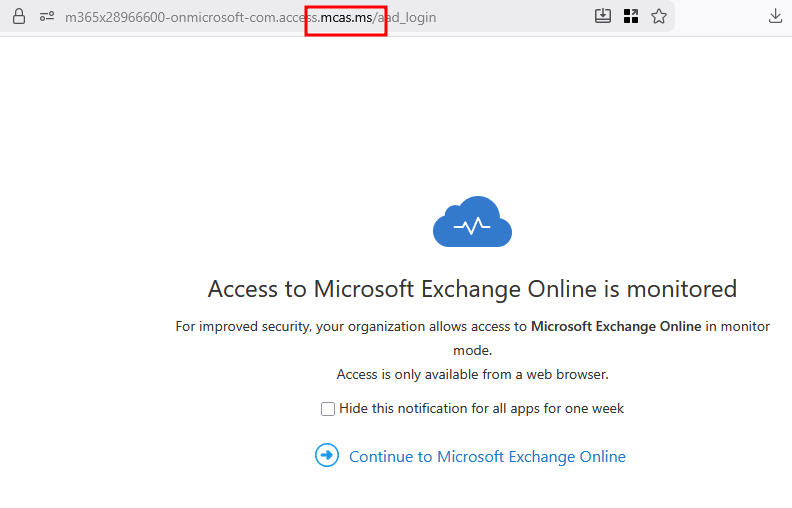
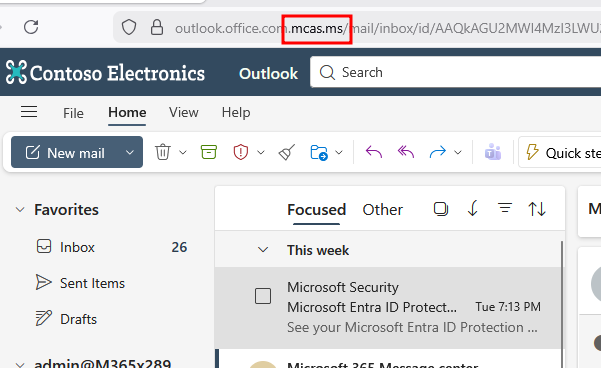
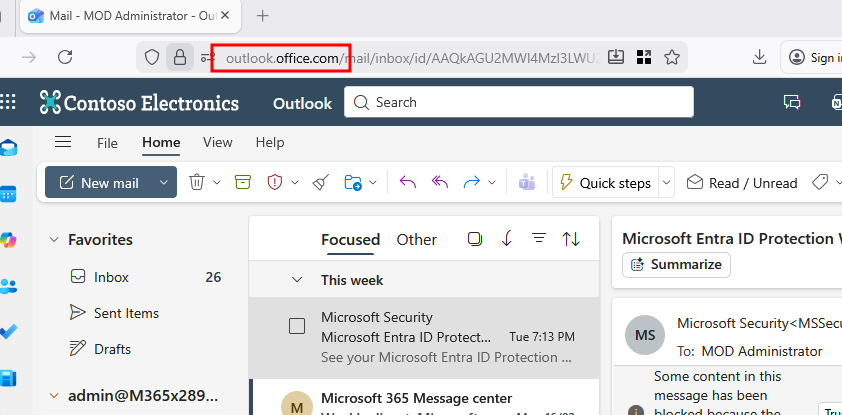
Browsing to outlook.office.com will redirect you straight to a *.mcas.ms domain.
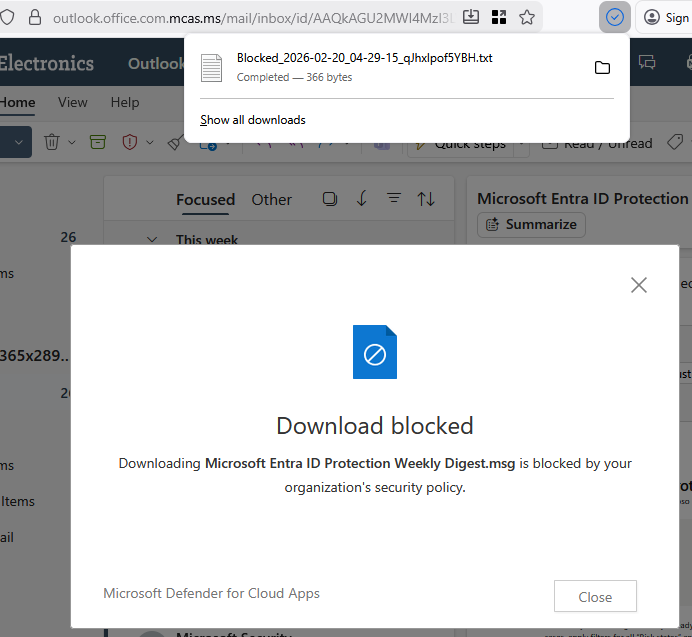
Attempting to download emails will result in the following popup. Additionally the downloaded file does not actually contain the file contents.
Job done right? No...
The Bypass
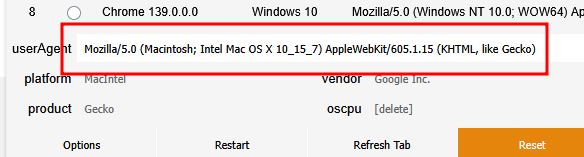
You can actually bypass Defender for Cloud Apps altogether by setting some magic user-agent strings.
Notably, it's controlled by us the user.
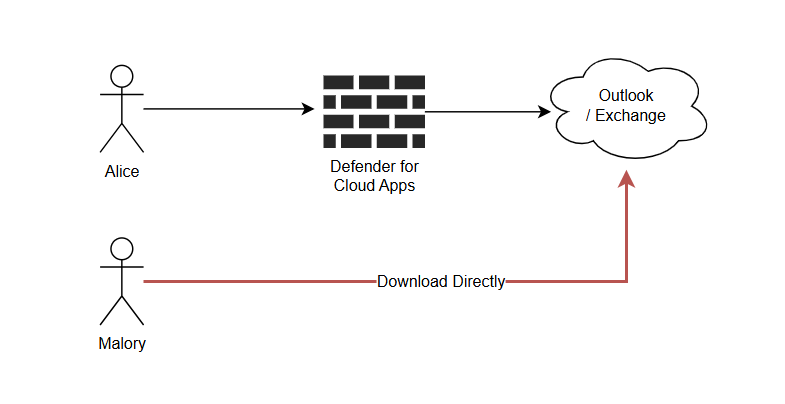
By using a browser extension for Firefox, Malory instantly becomes a penetration testing expert and can set their browser's user agent string to one of the magic strings.
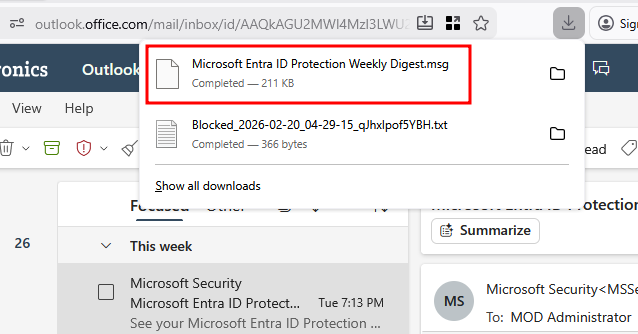
Browsing to outlook.office.com no longer forces us to be redirected to the *.mcas.ms Defender for Cloud domain anymore.
Clicking download on an email will now successfully download the actual email.
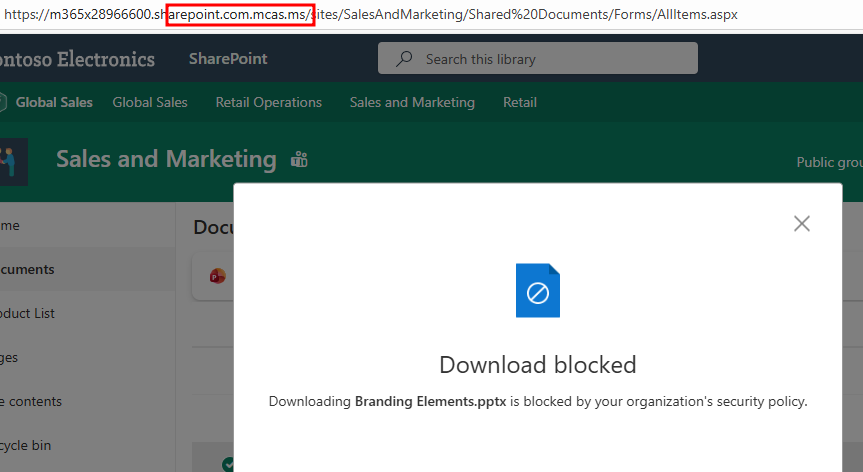
This same behaviour can be seen in Sharepoint. Without the user-agent string we are forced to browse through Defender for Cloud.
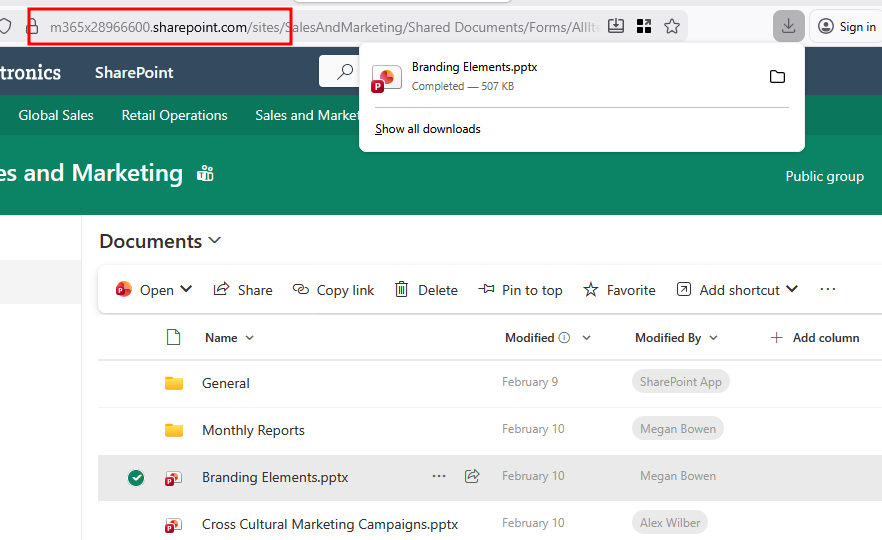
With our magic user agent string set, we can browse directly to Sharepoint and download to our hearts content.
The Solution
As far as fixing Defender for Cloud itself, Microsoft does not consider this to be an issue.
Fortunately both Outlook and Sharepoint support enforcing blocking downloads directly.
Outlook
A command-line only configuration exists for Exchange that restricts behaviour when on a browser.
ReadOnly: Users can't download attachments to their local computer, and can't enable Offline Mode on non-compliant computers. They can still view attachments in the browser. This doesn't apply to in-line images.
ReadOnlyPlusAttachmentsBlocked: All restrictions from ReadOnly apply, but users can't view attachments in the browser. This doesn't apply to in-line images.
Install-Module -Name ExchangeOnlineManagement -Scope CurrentUser
Connect-ExchangeOnline
Set-OwaMailboxPolicy -Identity OwaMailboxPolicy-Default -ConditionalAccessPolicy ReadOnlyPlusAttachmentsBlocked
Setting the policy
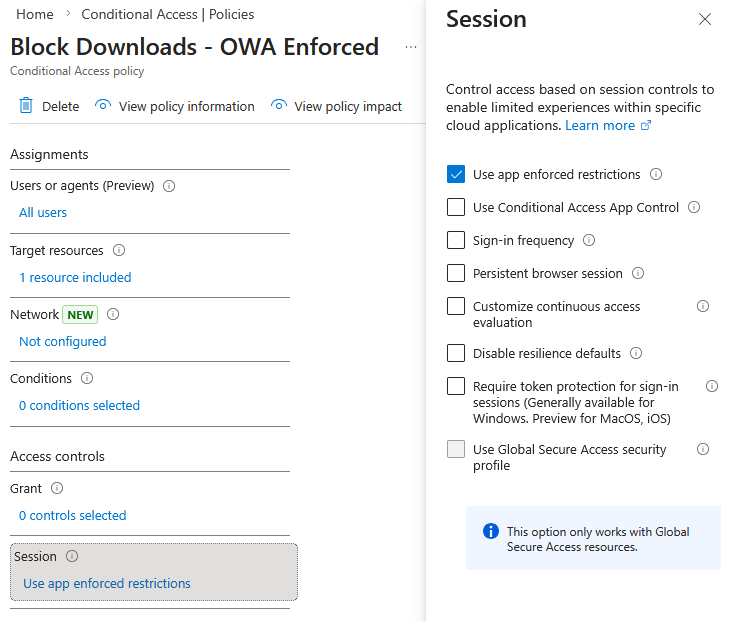
Creating the matching conditional access policy:
- Users: All users or a pilot group
- Target resource: Office 365 Exchange Online
- Conditions: Client apps: Browser or no conditions
- Session: Use app enforced restrictions
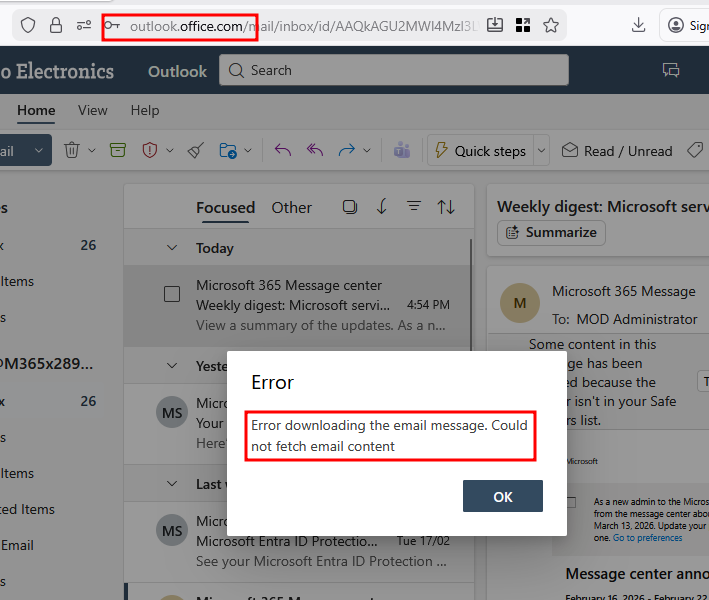
After some Microsoft minutes and a fresh login, we can no longer download emails in Outlook.
Sharepoint/OneDrive
Sharepoint/Onedrive has a similar feature in the Sharepoint admin center.
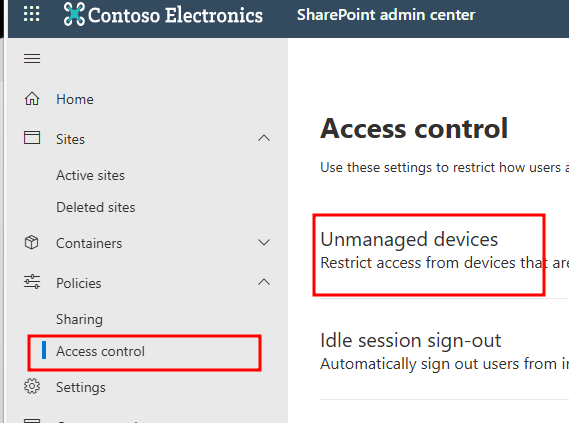
When Access Control for Unmanaged Devices in SharePoint is set to Allow limited, web-only access, SharePoint files can't be downloaded but they can be previewed.
You'll need to be quick to disable this CAP if you're not ready for it OR descope the policy. Make sure that your workstations are all Entra joined/marked as compliant if you intend to keep it.
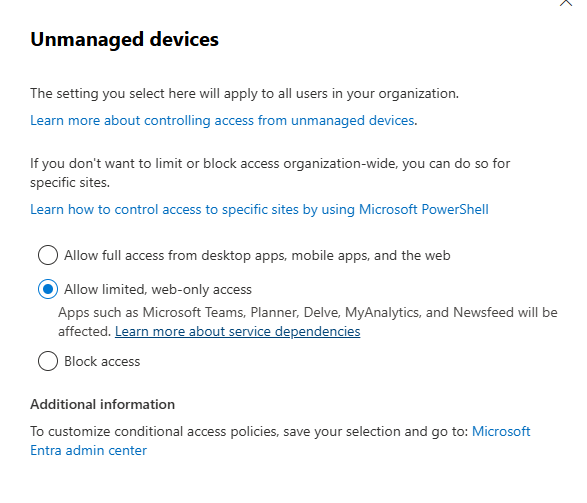
After ticking the above box and clicking save, the following CAP policies are created.

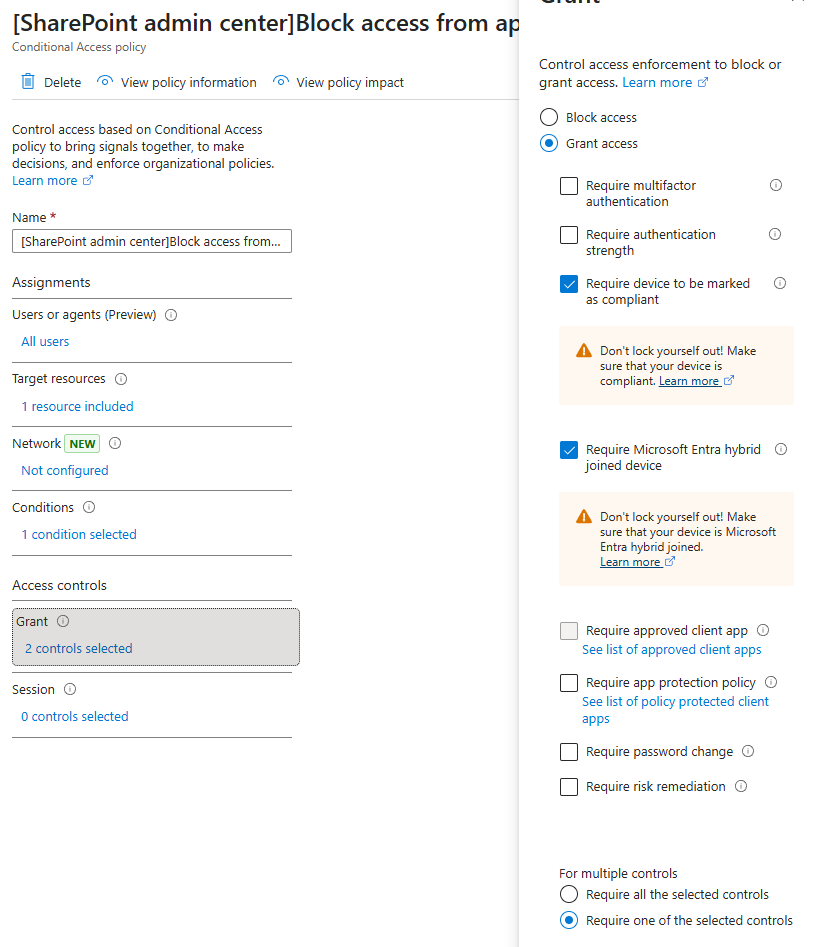
Policy details:
- Users: All users
- Target resource: Office 365 SharePoint Online
- Conditions: Client apps: Mobile apps and desktop clients
- Grant: Require device to be marked as compliant and Require Microsoft Entra hybrid joined device
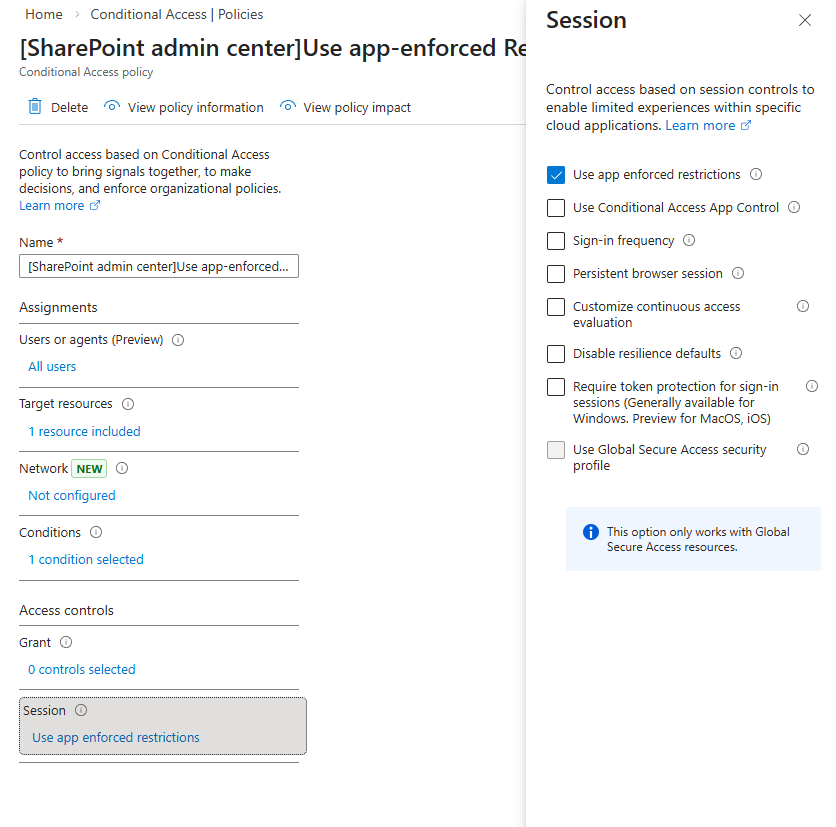
Policy details:
- Users: All users
- Target resource: Office 365 SharePoint Online
- Conditions: Client apps: Browser
- Session: Use app enforced restrictions
Also: It can take up to 24 hours for the policy in Sharepoint to take effect. It won't take effect for users who are already signed in from unmanaged devices. In our lab, it took ~18 hours for this to take effect.
Here's what the behaviour looks like after you've applied the policy. The download button simply just doesn't show anymore.
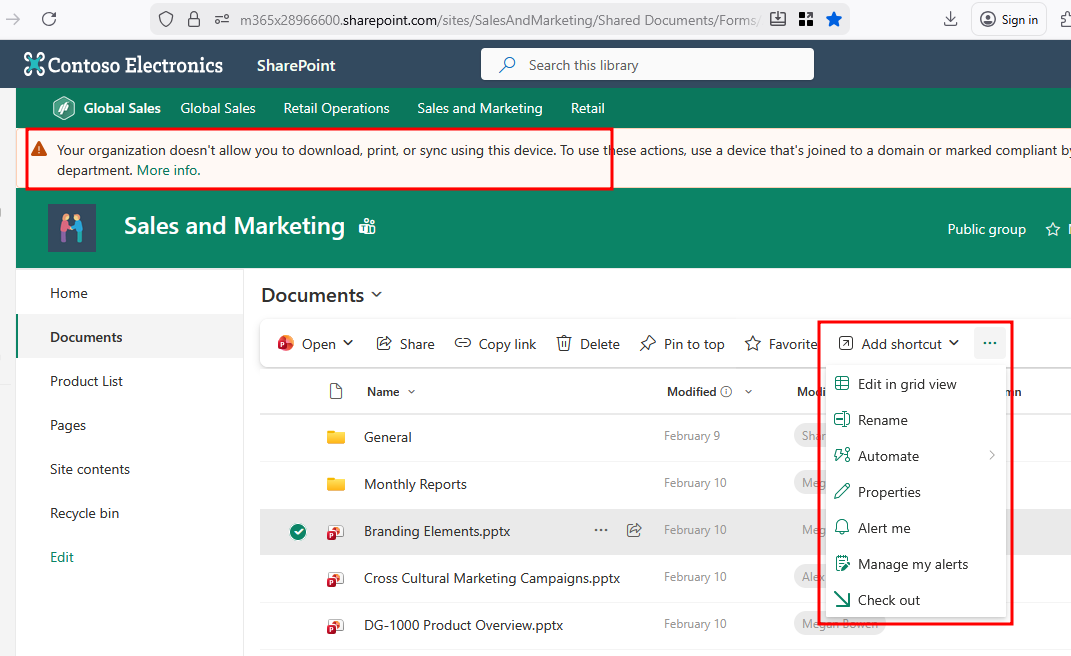

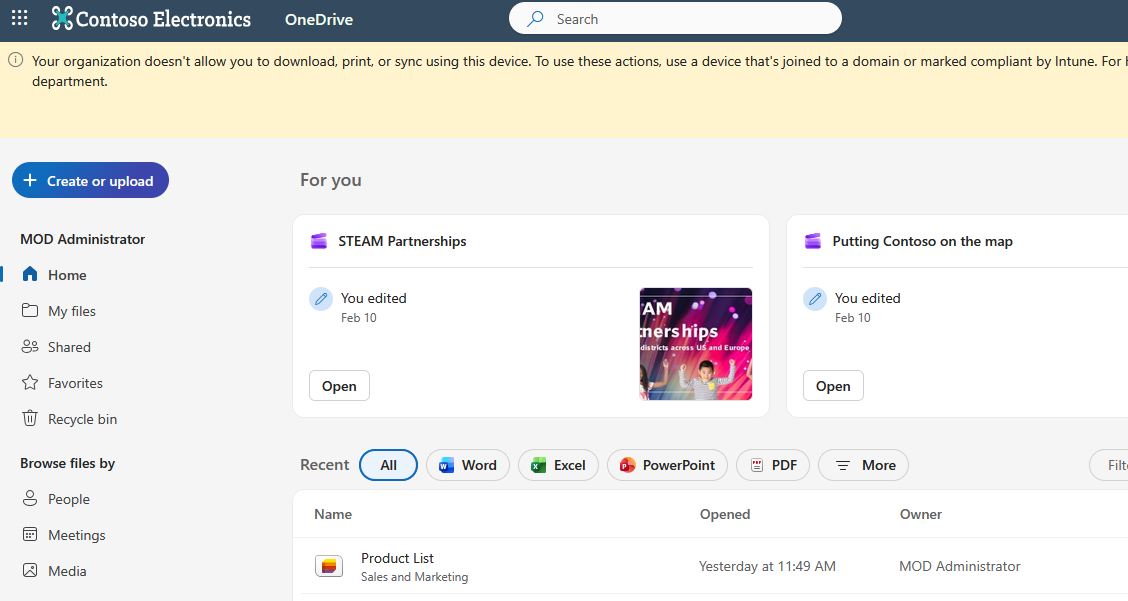
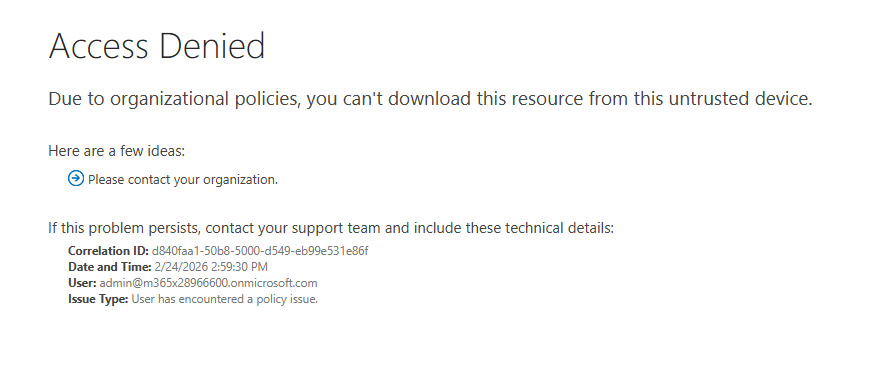
Making the request manually with Burp results in a 302 to an Access Denied page.
References
 chrisda
 denisebmsft